A Second Chumby Widget

July 17th, 2008

I finally had a chance to do some more Actionscript coding for the Chumby again. The last widget I did was the bare minimum to get going and this one is only a little more advanced. In particular it’s a simple analogue clock. All it does is show the current time, nothing more, but it does involve a few more “moving parts” than were involved in the “Hello World” widget from last time.

So to start off with here’s the scaled down scan I used for the clock face and hands:

I cut out the face and hands and put them into separate files (see .tar.gz below) for using in the Actionscript. All images were 24bit PNGs with variable alpha transparency, so that the edges look nice and smooth on the Chumby screen (which is relatively low resolution).

The Actionscript (ChumbyClock.as) is very simple and looks like this:


class ChumbyClock extends MovieClip {
	var hourHand:MovieClip;
	var minHand:MovieClip;
	var secHand:MovieClip;

	function onLoad() {
		this.hourHand = loadHand('hour_hand');
		this.minHand  = loadHand('minute_hand');
		this.secHand  = loadHand('second_hand');
	}

	function loadHand(hand_id:String) {
		var clip = this.createEmptyMovieClip("clip", this.getNextHighestDepth());
		clip._x = 160;
		clip._y = 120;

		// load image an shift it to be in 12 o'clock position
		// with 0,0 as middle of bottom of image
		var hand = clip.attachMovie(hand_id, 'hand', clip.getNextHighestDepth());
		hand._x = -hand._width/2;
		hand._y = -hand._height + (hand._width/2);
		return clip;
	}

	function toDegrees(val:Number, range:Number) {
		return (360*(val % range))/range;
	}

	function onEnterFrame() {
		var now:Date = new Date();

		var sec:Number = now.getSeconds();
		secHand._rotation = toDegrees(sec, 60);

		var min:Number = now.getMinutes();
		minHand._rotation = toDegrees(min, 60);

		// let hour hand move a little bit with min hand
		var hourWithMin:Number = now.getHours() + min/60.0;
		hourHand._rotation = toDegrees(hourWithMin, 12);
	}

}

All this does is create three movies which contain the hand images, placed so they are in the 12 O’Clock position. At each timestep (onEnterFrame) the current time is queried and the hand rotations are updated. The second and minute hands are just rotated in proportion with the relevant values. The hour hand is also slightly rotated with the current minute. As we get nearer the end of the hour, the hour hand moves nearer to the next hour. Much as you’d expected for a real clock. That’s it. I did play around with having smoother animation for the hands, but it looked a bit eery.

To tie the Actionscript and images together there is an xml file (app.xml) used by swfmill:

<?xml version="1.0" encoding="utf-8" ?>
<movie width="320" height="240" framerate="12">
  <background color="#ffffff"/>
  <clip import="build/classes.swf" />

  <frame>
    <library>
      <clip id="face"        import="images/hand_drawn/face.png" />
      <clip id="hour_hand"   import="images/hand_drawn/hour_hand.png"  />
      <clip id="minute_hand" import="images/hand_drawn/minute_hand.png"/>
      <clip id="second_hand" import="images/hand_drawn/second_hand.png"/>
      <clip id="app" class="ChumbyClock" />
    </library>

    <place id="face" name="clockFace" depth="0" />
    <place id="app" name="myApp" depth="1" />
  </frame>
</movie>

This will allow us to embed the PNGs in the generated SWF file and reference them from the Actionscript. In addition the clock face image is placed statically behind the main movie of the hands.

These files are then run through a build script to generate the SWF:

~/bin/mtasc-1.12-osx/mtasc -swf build/classes.swf -header 320:240:12 ChumbyClock.as
~/bin/swfmill-0.2.12-macosx/swfmill simple app.xml chumbyclock.swf

Here’s the generated SWF:


To test this on the Chumby I put the SWF on a memory stick along with this debugchumby script:

#!/bin/sh
chumbyflashplayer.x -i /mnt/usb/chumbyclock.swf

Then when the Chumby is rebooted with the memory stick in the clock displays and all is good.

So there you go that’s a simple clock widget for the Chumby - using open source tools.

Download Widget Source Code and Images.

Hello Chumby! (a first widget)

May 29th, 2008

So now that I’ve got the Chumby it seemed like a good idea to test out creating and uploading my first widget.

This is my first foray into flash development, so for the moment I’m just cribbing from other sources. I’m hoping that as Actionscript is a cousin of Javascript it won’t be too tricky to pick up. Though of course much of the learning will be related to the various APIs.

To get started I ran over to Open Source Flash and read the article on setting up a flash project without using the Flash IDE (seeing as I don’t want to buy Flash - for now at least). I then followed through from there to the MTASC site and looked at the example tutorial and realised that may be all I needed to get a simple “Hello World” widget working.

So here’s the Actionscript I used (saved in Tuto.as):


class Tuto {

    static var app : Tuto;

    function Tuto() {
        _root.createTextField("tf",0,0,0,320,240);
        // write some text into it
        _root.tf.text = "Hello\nChumby!";

        // make the text appear bigger on the screen
        var format = new TextFormat();
        format.size = 64;
        _root.tf.setTextFormat(format);
    }

    // entry point
    static function main(mc) {
        app = new Tuto();
    }
}

Which is based on the code in the MTASC tutorial.

Then with MTASC downloaded and installed in ~/bin/mtasc-1.12-osx/ on my Powerbook, I compiled the code using:

~/bin/mtasc-1.12-osx/mtasc -swf tuto.swf -main -header 320:240:12 Tuto.as

Which creates the SWF file tuto.swf.

Note the -header 320:240:12 option. This is to set the size (320×240) and framerate (12fps) of the resulting SWF. These are the settings as required for the Chumby.

With that done I then tried out tuto.swf in my web-browser to make sure it worked. Next I uploaded the widget via chumby.com (which meant I had to create an 80×60 pixel icon too). I made sure that the widget was set to private when uploading (seeing as only I wanted to see the widget) and then added it to my “development” channel.

Then I selected the “development” channel on my chumby to see the results:

I did run into a little trouble getting the widget to refresh after uploading. It seemed to work sometimes, but in the end I started sshd on the chumby so I could stop and start the control panel (after connecting via ssh):


chumby:~# stop_control_panel
chumby:~# start_control_panel

Which seemed to solve the trick. I’ll have to investigate other means of deploying to the chumby when I’m properly developing, but overall it wasn’t too much effort going via the chumby site.

Unpacking Chumby

May 28th, 2008

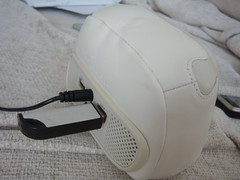
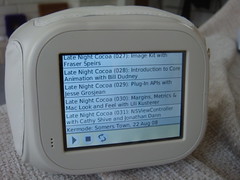
So the Chumby finally arrived today. Heather had very kindly and sneakily managed to arrange for it to be sent from the US (seeing as it’s not yet available over here in the UK) for my 30th. I have to say that so far I’m pretty impressed.

It’s got that geek gadget factor working for it very well. Lots of options to configure, but at the same time it’s pretty easy to use. Lots more exploring to do, but even just the fact that it’ll play Radio Paradise out of the box is enough for me…


IMG_5090

IMG_5093

IMG_5097

See more chumby photos